Workflow
How to set up a scheduled task in Claude Cowork
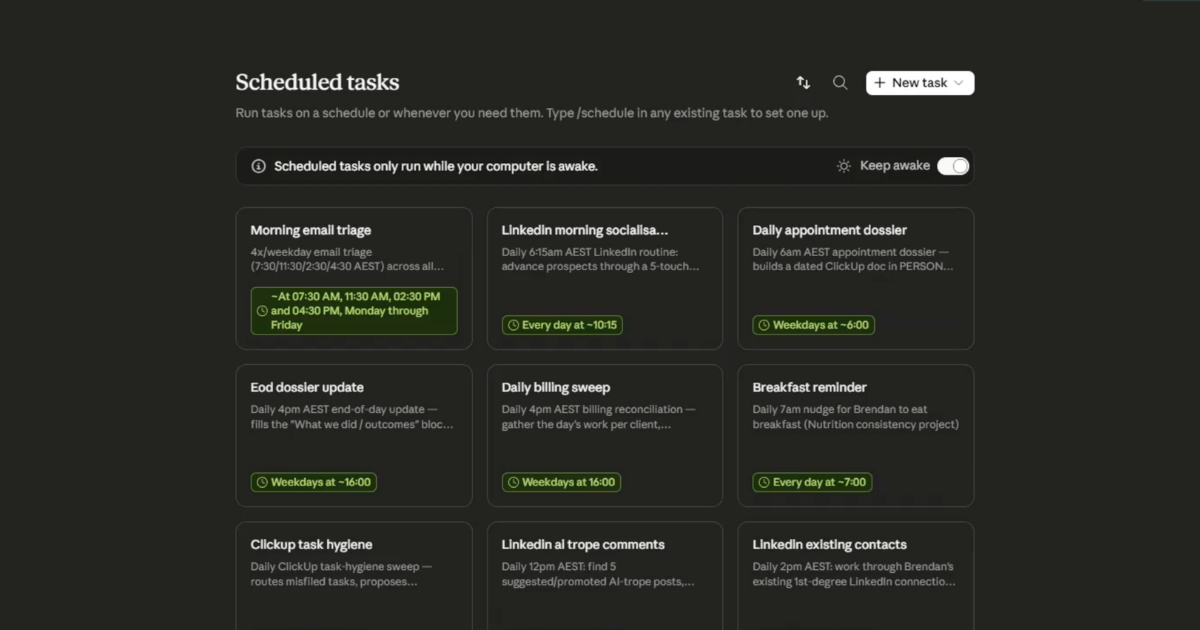
A scheduled task in Claude Cowork runs on your computer. The actual machine on your desk, not a server somewhere out in the cloud. So if you shut the computer down, the task doesn't run.
That's the first thing worth getting your head around, because most of the setup comes back to it.
It runs on your computer
Because tasks run locally, there's a switch up the top that keeps the machine awake while they're scheduled. It overrides your Windows power settings so the computer doesn't drop off to sleep and skip a task. Leave that on.
One more thing if you use Chrome a fair bit. Keep a spare Chrome window open and sitting there. If the task needs a browser to do part of its job, it's got one ready to go.
Two ways to set one up
First way is the obvious one. Cowork, then Scheduled, then New Task. You can build it with Claude, talk through what you want, back and forth, and it locks that in as a scheduled task. Or set it up manually.
The way I use most, though, comes later. It's after I've already finished a session with Claude and worked something out. I've got a process right, and I want Claude doing that same thing for me every day, ready when I sit down in the morning. So I turn that finished job into a scheduled task.
Sort out the job first
Here's the part people skip. When I'm setting one of these up, I'm not talking to Claude about scheduling at all yet. I'm focused on the job.
So, real example. Part of my work with different clients means I've got a mailbox inside each of their setups, and the system notifications land there. Capacity warning on this, something overran on that, a bill due. Little things that might break something if I don't stay ahead of them. So I ask Claude to go and look through those mailboxes and tell me what's going on.
I gave it a fairly simple description. Could've been way more detailed, and I'd have got a sharper result quicker. But that's kind of the point of the next bit.
Getting it right is mostly iterating
Claude goes and looks, makes some assumptions off what I said, and comes back with something. From there I nudge it. That matters, that doesn't, you reckon that's important but it's not, here's more context on how I want it to work. A few rounds of that and it's sharp.
Simple instruction, then feedback a couple of times, that gets you there pretty quick. And because the thing's handy once it's done, you can kick it off, let it run a few minutes, come back and give it a nudge through the day. Do that a few times and it's right. Then you leave it running.
In my case it picked up some Microsoft Defender bits it wanted me to look at, across a couple of machines, and loaded them as tasks in my system. I had it assign everything to me, I don't want to disrupt anyone else in the business while I'm still tuning it. Could just as easily route it to whoever owns that stuff, or a shared mailbox where it gets collated. Up to you.
Deciding what it's allowed to touch
As it works, Claude asks permission for things. Claude wants to use a tool, can it go ahead. You'll see these come up because of how the connectors are set.
If you go into your connector settings, every tool has a permission next to it. Some are set to always allow, some to ask when it needs approval, and some you can block outright. They group into read tools, write tools and delete tools.
The way I handle it: read-only tools, always allow. It's just reading data, that's fine. Delete tools I might want to be asked about, though I'll let most of it run, because I've been using this a while and I trust it. If you want to be careful, you can get specific. Deleting a checklist, fine. Deleting a whole folder or a whole list, that involves a lot, so make it ask first.
Turning the job into a schedule
Once the job's doing what I want, I turn it into a scheduled task. I'll tell it something like "run this every day at 3pm, weekdays." You can say it loosely like that and it works out what you mean. That's the handy part of working with Claude instead of a person: you don't have to be precise, you can throw the words at it and it picks up the context.
It uses a skill to actually create the scheduled task, it's got instructions for how these get built in the system, then asks me to confirm. Confirm, and it's set. Every weekday, around 3pm AEST.
Why it won't run exactly at 3pm
Go and look at the task afterwards and you'll notice it's set to run at approximately 3pm, with a randomised delay of a few minutes. That's deliberate. Anthropic adds it so everyone's tasks aren't firing at exactly 3:00 and overwhelming their servers. So yours lands somewhere a few minutes either side.
Which changes how you schedule anything you want ready at a set time. Say you're at your desk at 7 every morning and you want a summary waiting. Don't set it for 7. Don't set it for 6:45 either, it takes a while to run, and it won't start dead on time anyway. Set it for just after 6:30. Then it's finished and sitting there when you walk in.
Changing it later
Updating a task is easy once it exists. Say it's been running, and over a session you've told Claude a bunch of new things, create that task, ignore that one, this notification means something different now. At the end, tell Claude to update the scheduled task with all of it. It'll confirm, you set it again, and next time it runs better, with a rule in there saying it doesn't need to bother you about that particular thing anymore.
Link to full video